Odd attractions

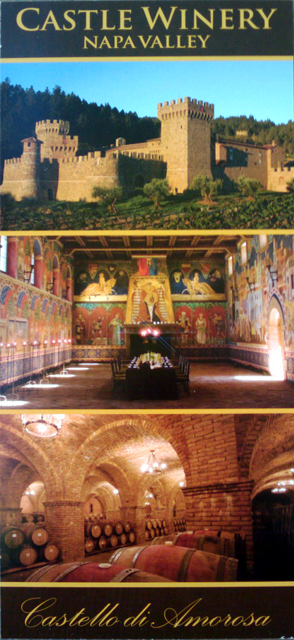
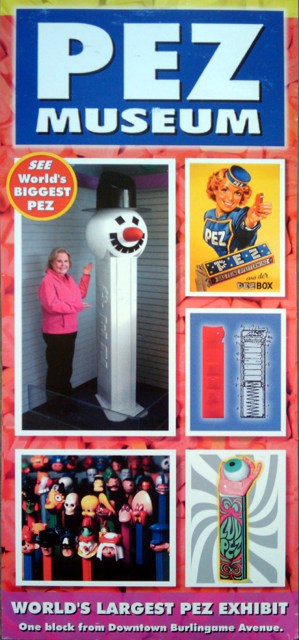
I found these fantastic flyers in my hotel lobby this morning.

Alarmingly the Amish Attractions seems to simply consist only of quilts.

The Castle Winery however, sounds pretty impressive with its authentic 12th century, 121000 square foot Tuscan castle consisting of 107 rooms, 8000 tons of hand squared stones, 8 levels (with 4 below ground), 900 feet of caves,  a moat, dungeon, a torture chamber, a consecrated chapel and a hand-painted grand hall. Not quite sure how they can claim that the castle is authentic since its sitting in California and built in the 90s.

YouTube drops IE6 support

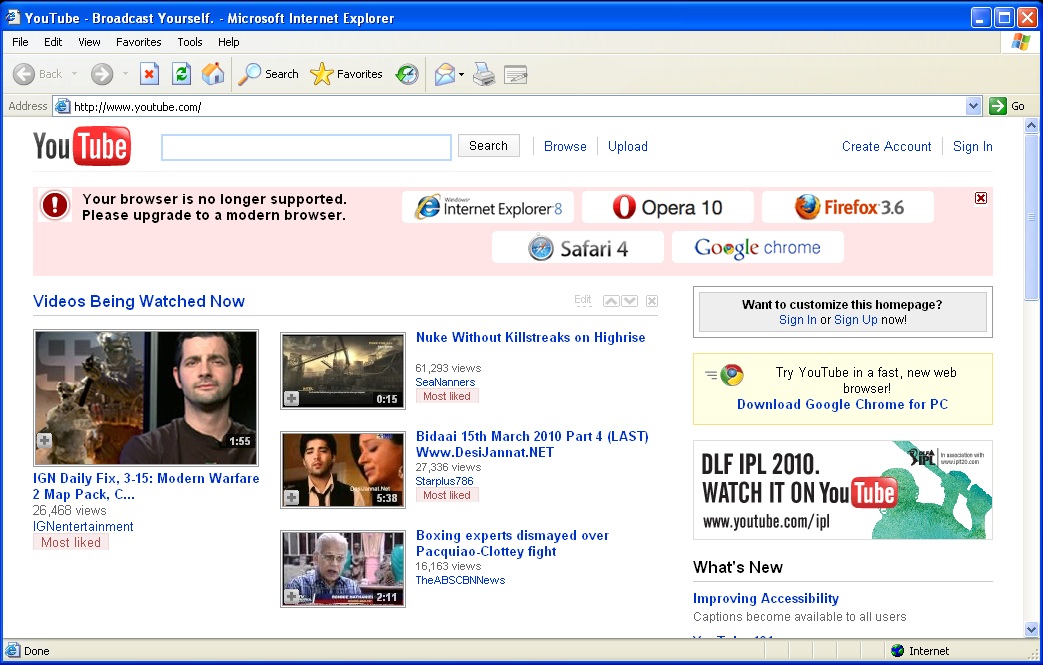
Earlier this week YouTube officially dropped support for older browsers such as Internet Explorer 6. If you try access YouTube with IE6 you get this nice warning message:

The order of the browsers appears to be random, refreshing on each load. Hopefully they used a better random algorithm then Microsoft recently used for their EU browser choice site.

I’m really hoping that this trend will be followed by more mainstream sites and we will finally, finally see the death of IE6 which still holds around about a 20% market share!

And if you are still running IE6 (I’m looking at you big New Zealand corporates),  a quick read of the “Operation Aurora” attacks on Google and other big US companies should be enough to scare you into upgrading ASAP.

Death to IE6!!!

Google’s timetable for dropping IE6

I received the following email from Google yesterday. It details their timetable for dropping IE6 support:

_Dear Google Apps admin,

In order to continue to improve our products and deliver more sophisticated features and performance, we are harnessing some of the latest improvements in web browser technology.  This includes faster JavaScript processing and new standards like HTML5.  As a result, over the course of 2010, we will be phasing out support for Microsoft Internet Explorer 6.0 as well as other older browsers that are not supported by their own manufacturers.

We plan to begin phasing out support of these older browsers on the Google Docs suite and the Google Sites editor on March 1, 2010.  After that point, certain functionality within these applications may have higher latency and may not work correctly in these older browsers. Later in 2010, we will start to phase out support for these browsers for Google Mail and Google Calendar.

Google Apps will continue to support Internet Explorer 7.0 and above, Firefox 3.0 and above, Google Chrome 4.0 and above, and Safari 3.0 and above.

Starting this week, users on these older browsers will see a message in Google Docs and the Google Sites editor explaining this change and asking them to upgrade their browser.  We will also alert you again closer to March 1 to remind you of this change.

In 2009, the Google Apps team delivered more than 100 improvements to enhance your product experience.  We are aiming to beat that in 2010 and continue to deliver the best and most innovative collaboration products for businesses.

Thank you for your continued support!

Sincerely,

The Google Apps team

Paper ship markers for Rogue Trader

I've just started GMing the Rogue Trader game (from Fantasy Flight Games) with my regular gaming group and I realised, I needed some way of tracking ships.

Now ideally I'd love to have some Battlefleet Gothic models out on the table but apart from the expense, I do not want to freak out the newbie (and female) players in the group by plonking down some "toy" spaceships.

So I went in search of some paper markers that I could print out and use. Alas I did not find any,  so I decided to whip some up for myself…

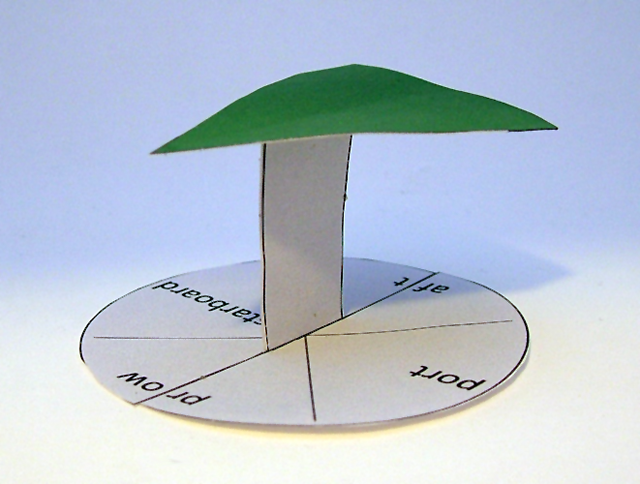
And so I present Rabidgremlin's Tactical Ship Markers. These markers are designed to be printed, cut out, folded and glued together. They come in 3 handy colours: red for enemy ships, blue for neutral and green for friendly.

I got a little carried away and even made them 3D (and perhaps in doing so, have risen to new levels of nerdom).

Here is a pic of an assembled marker.

And here is the PDF of the markers, that you can download and print out: Tactical-Ship-Markers-Coloured-v0.1.pdf

I used standard office 80g paper and they work ok but you might want to use something stiffer.

For those of you who are interested, I used Inkscape to create the markers. Inkscape is a fantastic, open source, vector graphics editor.

Tip: Creating easy to remember passwords

Passwords are a pain in the butt, if you use a computer or the Internet then you no doubt have a list of passwords bouncing around in your skull or worse yet a single password that you use everywhere! Here is a simple technique for creating good, easy to remember passwords.
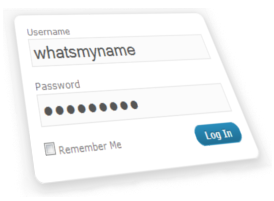
Password inputFirst off here are some golden rules for passwords:

  1. A password needs to be strong (see below)
  2. You should only use a password for one site or account
  3. You should never write a password down
  4. You should never tell anyone else your password (duh)

Of course all of us break these rules…

So what is a good password? A good password is one that is “strong” from a security point of view. Typically this means a string of 8 characters made up of numbers and letters. Additionally the password should not contain any “dictionary” words (e.g. a word you find in the dictionary) nor should it contain information relating to you, such as your name or date of birth.

On top of that, your password should not be a common one. Believe it or not, people tend to think just like you and so there is a whole raft of passwords that people tend to use such as qwerty, 7777777, bond007, butthead, trustno1. This list (from Twitter’s sign-up) page contains 370 common passwords which Twitter does not allow to be used. Needless to say, if one of your passwords is on this list then you should probably not use it :)

Here are 10 “strong” passwords generated using the excellent from pctools.com password generator.

ne3hebr4 fe5ec7ur
th55ucep 2rayaves
24astete 8hacruth
fathu4e7 5rubrast
tebra2ep 4awraph4

Now these passwords are all well and good but you are not likely to memorise them are you? Which means you will either write them down or you will just memorise one, which you would use everywhere. Once again breaking the rules.

So here is better way, which not only generates strong passwords, unique to each website but also makes them easy to remember !

First off choose 4 characters, a mix of letters and numbers (ideally more numbers then letters). These 4 characters are the only thing you will need to remember. For instance r085, which I will use in the examples below.

Next up, when you need a password for a website, take the first 4 characters of the website’s domain name and alternate them with the characters in your secret 4 character string, for example:

facebook.com:
                f a c e
                   +      = fra0c8e5
                 r 0 8 5 

twitter.com     t w i t
                   +       = trw0i8t5
                 r 0 8 5 

gmail.com       g m a i
                   +       = grm0a8i5
                 r 0 8 5 

digg.com        d i g g
                   +       = dri0g8g5
                 r 0 8 5

And voila you get nice strong passwords, unique to every site !

Configuring a test SSL certificate for Jboss

I just had to set up a test certificate for my local install of Jboss 4.2.3 to try out some SSL code. It wasn’t completely obvious so here are some notes on how to do it.

First off you need to create a self-signed certificate. You do this using the keytools application that comes with Java. Open a command prompt and run the following command. You will need to change the path to your Jboss conf directory to reflect your install:

C:\>keytool -genkey -alias tomcat -keyalg RSA -keystore C:\jboss-4.2.3.GA\server\default\conf\localhost.keystore

When prompted use a password of changeit everywhere. It’s important that you answer localhost to the first question:

Enter keystore password: changeit
Re-enter new password: changeit
What is your first and last name?

What is the name of your organizational unit?
  [Unknown]:
What is the name of your organization?
  [Unknown]:
What is the name of your City or Locality?
  [Unknown]:
What is the name of your State or Province?
  [Unknown]:
What is the two-letter country code for this unit?

Is CN=localhost, OU=Unknown, O=Unknown, L=Unknown, ST=Unknown, C=NZ correct?


Enter key password for
        (RETURN if same as keystore password): changeit
Re-enter new password: changeit

Next up you need to configure tomcat to create a SSL connector.

Edit C:\jboss-4.2.3.GA\server\default\deploy\jboss-web.deployer\server.xml and find the commented out SSL connector example, uncomment it and tweak it as follows:

<Connector port="8443" protocol="HTTP/1.1" SSLEnabled="true"
maxThreads="150" scheme="https" secure="true"
clientAuth="false" sslProtocol="TLS"
keystoreFile="${jboss.server.home.dir}/conf/localhost.keystore"
keystorePass="changeit"
/>

Finally add two System properties to your Jboss startup command to get the javax.net.ssl library to use your new keystore. These are only needed if you need to make SSL calls back to yourself. I needed them because I had CAS and 3 apps authenticating with CAS all running in the same dev Jboss instance:

-Djavax.net.ssl.trustStore=C:\jboss-4.2.3.GA\server\default\conf\localhost.keystore
-Djavax.net.ssl.trustStorePassword=changeit

Ok now browse to http://localhost:8443/

Your browser will complain about a self-signed certificate. Just follow your browser’s instructions to add this certificate as a security exception so you won’t be prompted again and you are all done.

Inside Google Wave

ClearPoint held one of its regular tech-drop get-togethers last night covering Google Wave.

The Cloudbreak team gave a good walk-through of the product  and I gave a quick overview of some of the technology inside Google Wave and it’s APIs.

Here is my slide deck:


Click to see next slide

The PDF (with notes) can be downloaded here.

For those of you who know nothing about the wave, here is short intro video:

YouTube Preview Image

Vodafone NZ settings for Android phones

I have an Android G1 Developer phone (based on the HTC Dream) and have had major issues getting MMS to work with the Vodafone network in New Zealand. Vodafone was next to useless in resolving this problem but after bashing my head against a wall for ages and “phoning a friend” (thanks Nick) I finally have a configuration that works.

Interesting enough I actually resorted to debugging my phone to see where the issue was and then took a wander through the Android source code to see why things were going wrong. In the end it turned out to be simple case sensitivity issue with the APN type field for the MMS APN  (it must all be in lowercase) !

So in case anyone else is having the same issue here are the details of the two APNs you need to setup. These should work for any Android based devices:

Name: Vodafone NZ
APN: www.vodafone.net.nz
Proxy: <not set>
Port: <not set>
Username: <not set>
Password: <not set>
Server: <not set>
MMSC: null
MMS Proxy: <not set>
MMS Port: <not set>
MCC: 530
MNC: 01
APN Type: default
Name: Vodafone NZ-MMS
APN: live.vodafone.com
Proxy: <not set>
Port: <not set>
Username: <not set>
Password: <not set>
Server: <not set>
MMSC: http://pxt.vodafone.net.nz/pxtsend
MMS Proxy: 172.30.38.3
MMS Port: 8080
MCC: 530
MNC: 01
APN type: mms

SvnViz 1.0.0 Released

Finally got off my butt and packaged up version 1.0.0 of SvnViz. It can be downloaded from sourceforge.

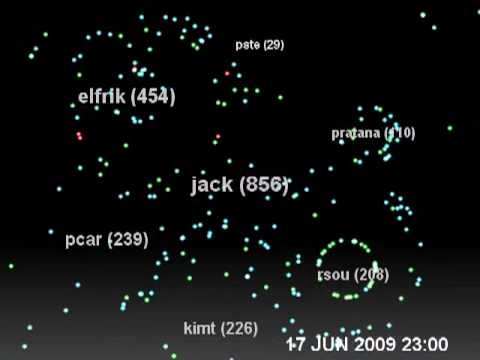
SvnViz builds visualizations of the activity within a Subversion repository. Here is an example of the default visualization run against the project that I am currently working on. Green dots indicate file adds, blue dots are modified files and red dots are deleted files. The greater the activity of the user the higher their score.

YouTube Preview Image

SvnViz also provides a framework for creating your own visualizations. Simply extend the FrameViz class and implement the generateFrame method. To run your vizualization class, instead of the default class, just pass the fully qualified name of your class to the application using the -vc parameter.

Source files can be downloaded from here. All code is released under the GPL.

Have fun and drop me a line if you come up with an interesting visualization.